If you are a parent exploring the world of STEM for your 5 to 10-year-old, you have likely tripped over the promise of "learning to code in just three days." Let me be the one to stop you right there: anyone promising "fast" coding results is selling you a brochure, not a skill. I’ve spent years in the classroom watching kids struggle with their first loops, and I can tell you that the magic isn't in how fast they learn—it’s in what they actually build.
Today, we’re looking at code.org creative computing. It’s a resource that pops up in almost every search for a free scratch course code org offers. But is it right for your home setup? Can it actually bridge the gap between "watching a video" and "actually coding"? Let’s dig into the details without the marketing fluff.
What is the Code.org Creative Computing Curriculum?
At its core, the code org scratch curriculum is designed to move kids beyond the basic "drag-and-drop" puzzles and into the world of creative agency. It uses Scratch, a visual environment where kids use snap together command blocks to create animations, games, and stories.
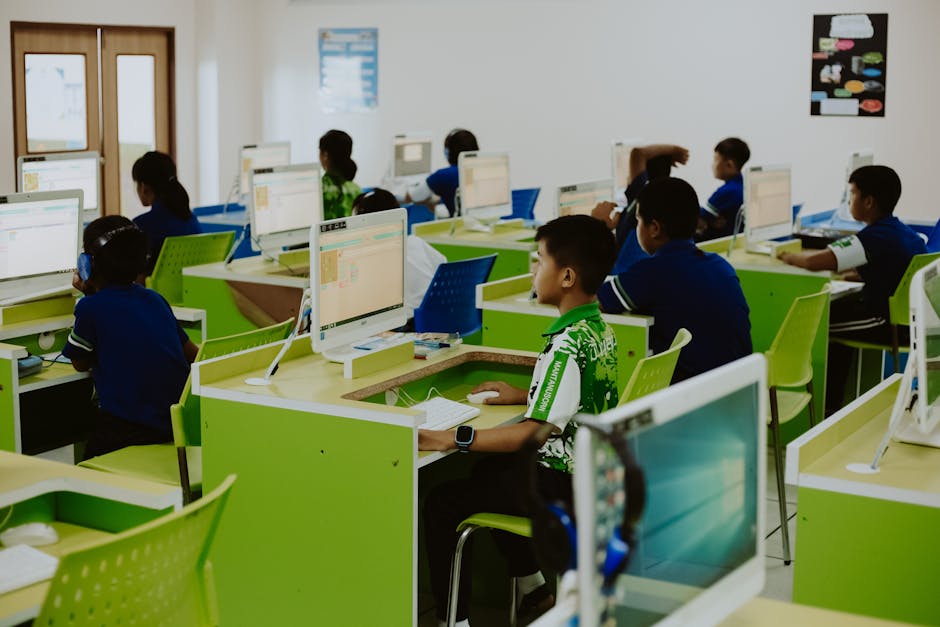
Block-based programming is the gold standard for young beginners. By replacing complex syntax (that dreaded semicolon!) with snap together command blocks, kids can focus on logic: "When I click this sprite, what should happen next?" rather than "Did I misspell the command?"
The "On-Ramp" Advantage of Scratch
Scratch is the ultimate on-ramp. It feels like playing with digital LEGOs. The code.org creative computing materials are fantastic because they don't just teach the commands; they teach the intent behind the programming. However, there is a distinct difference between "following a tutorial" and "coding."
The Great Divide: Self-Guided vs. Live Instruction
Parents often ask me if they should just let their child work through a free course. It’s a valid question, but we need to talk about where kids actually get stuck.

Where Kids Get Stuck (The "Instructor's List")
As a veteran teacher, I have a mental list of the "Brick Walls." When a kid encounters these, they usually quit. If you’re doing this at home without a tutor, be ready for these moments:
- Loops: A child realizes they’ve written the same block ten times. If they don't understand the "Repeat" block, they feel like they’re doing busy work. Broadcasts: This is where 90% of 7-year-olds stop. Understanding how one character "talks" to another via a signal is a huge cognitive leap. Clones: A student tries to make an army of zombies, and suddenly, they can't delete them. The screen gets messy, the program lags, and panic ensues.
In a live class, I can see the frustration before they click "Close Tab." At home, you need to watch their face. If they stop smiling and start tapping their feet, it’s time to pause and switch to a different task.
Avoiding the "Interactive" Trap
One of my biggest pet peeves is platforms that call themselves "interactive" but are just a series of long, boring videos. If the course is just an adult talking for 15 minutes before the child gets to touch the mouse, it is not an interactive course.
The code.org creative computing framework avoids this, but only if you use it correctly. If your child is just "watching" the screen, they aren't learning. They need to be physically manipulating the snap together command blocks in a separate tab or on a second screen.
Your First Small Project (Do this tonight!)
Do not wait for a full curriculum to get started. Avoid the frustration of "big projects" by starting with something tiny. If your child tries to build a complex RPG on Day 1, they will crash and burn. Instead, try this 10-minute challenge:
Open Scratch and pick one character (a sprite). Find the "Move 10 steps" block. Find the "Wait 1 second" block. Loop them together. Goal: Create a "timer" where the character moves only when the user clicks a "Go" button.If they can https://americanspcc.org/best-scratch-coding-classes-for-kids-2026-guide/ finish that, they’ve mastered loops and event handling. That is a victory. Celebrate it.
Is the Free Option Enough?
Let’s be honest about the limitations of free scratch course code org modules. They are excellent for exposure. They are brilliant for the "curiosity" phase. However, they lack the diagnostic power of an experienced teacher.
If your child is highly self-motivated and you, as the parent, have the bandwidth to sit with them and troubleshoot when they get stuck on a "Broadcast" event, then yes, the free content is plenty. But if you find that every session ends in a tantrum or a "this is boring" comment, it’s not because the curriculum is bad—it’s because the child needs a human to bridge the gap between logic and implementation.
Final Thoughts for Parents
Coding is not a race. Your 8-year-old doesn't need to be a software engineer by next Tuesday. They need to learn how to fail, how to debug, and how to express their ideas through snap together command blocks.
Whether you choose the code.org creative computing path or look into live 1:1 sessions, my advice remains the same: Look for the program that lets them build something *today*. If they can’t show you a working project by the end of the first week, find a different way. The best coding education is one where the child feels like they own the computer, rather than the computer owning them.
Recommended Steps for Parents:
- Start Small: Focus on animations before games. Embrace the "Stuck": Don't give them the answer. Ask: "What do you think is happening here?" Keep it Social: If they build a timer, ask them to make it an alarm clock. Peer or parent-praise is the ultimate fuel for young coders.
Happy coding—and remember, even the best coders spend half their time just trying to figure out why their cat sprite isn't moving!